An e-bike scheme captcha problem usually means the portal did not accept the code you typed, or the code picture did not load, while you were creating your account on bikes.punjab.gov.pk. This guide shows what the captcha on the official portal looks like, the other form rules that often stop a sign-up, and safe fixes you can try.
As of 14 September 2026, registration for Phase 2 of the CM Punjab E-Bike Scheme is open, the portal shows 4 October 2026 as the last date, and registering is free. For the full scheme, see our guide to the CM Punjab Electric Bike Scheme.
What the e-bike scheme captcha looks like
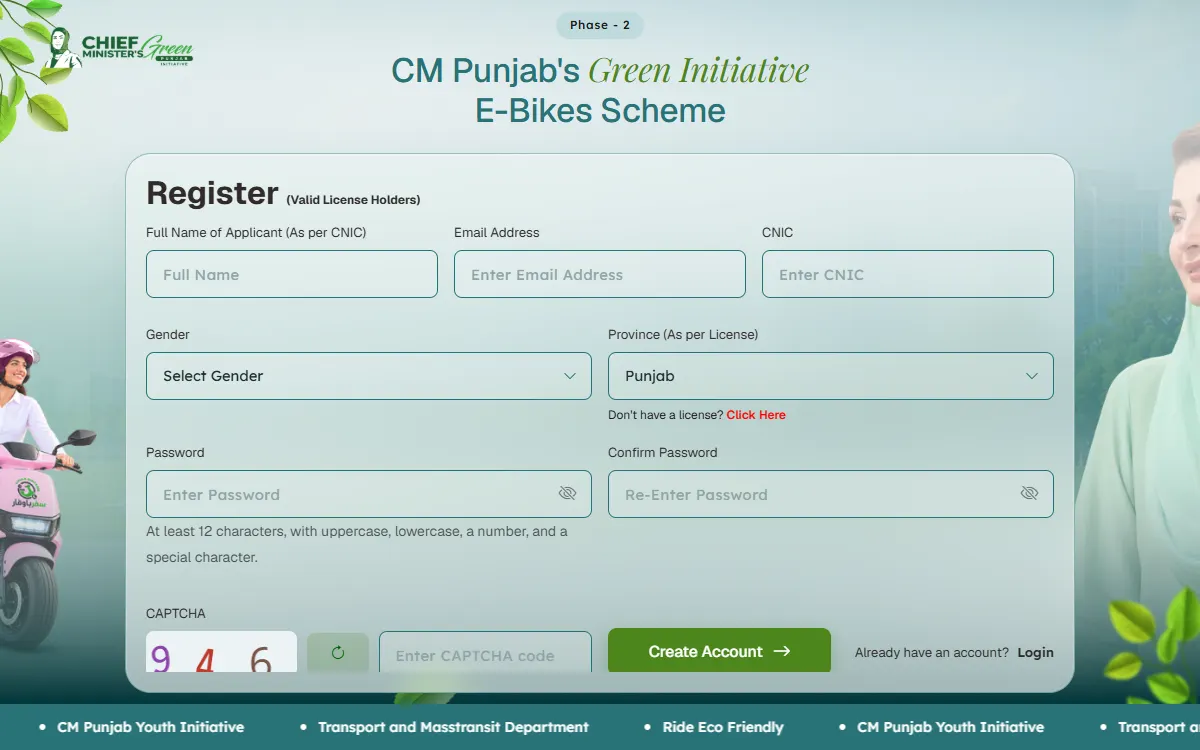
On 14 September 2026, the official Register page showed a part called CAPTCHA below the two password boxes, with three things side by side:
- The picture: a small image with 3 coloured numbers. Each time we checked, the code was numbers only, with no letters.
- The round arrow button, labelled “Refresh CAPTCHA”, which loads a new picture.
- The box that says “Enter CAPTCHA code”, where you type the numbers.
It is not a sum like “22 + 6”, and it is not Google’s tick box that asks if you are a robot, as some websites say. Go by what you see on the portal, because a captcha can change.
The Login page has the same kind of number captcha. The Forgot Password page asks only for your email address and has no captcha.
On a phone
- The form sits inside a box that scrolls on its own. Scroll inside that box to reach the captcha and the Create Account button.
- On small screens the picture is shown narrower than its real size, so the numbers can look squashed. Pinch with two fingers to zoom in, or tap the round arrow for a clearer code.
How to fix an e-bike scheme captcha problem
These typing steps suit the portal’s number captcha:
- Type the captcha last, just before you tap Create Account.
- Type every number from left to right, with no space before or after.
- Not sure about a number? Digits like 1 and 7 can look alike. Tap the round arrow and use the new code instead of guessing.
- After a refresh, type the new numbers, not the old ones.
- Switch to the number keys. The code box opens your normal keyboard, and a letter O or L will not match a number.
- After an error, check every box again. The page may show a new code, and you may need to type your passwords again.
If a carefully typed code still fails, the cause may be your browser or connection. See the general fixes below.
Other form rules that make sign-up fail
Often the captcha is fine and a different box stops the form. These rules and messages come from the Register page’s own code, as of September 2026:
| Box | The portal’s rule | Portal’s error message |
|---|---|---|
| Full Name (As per CNIC) | English letters, spaces and dots only | ”Full Name must contain alphabets only.” |
| Email Address | A complete email address that you use | ”Email is required” |
| CNIC | 13 digits; the box adds the dashes itself | ”CNIC Number is required” |
| Gender | Choose one | ”Gender is required” |
| Province (As per License) | The province that issued your licence | ”Province is required” |
| Password | 12 or more characters, with a capital letter, a small letter, a number and a symbol | ”Password must be at least 12 characters and include uppercase, lowercase, a number, and a special character.” |
| Confirm Password | Exactly the same password again | ”The password confirmation does not match.” |
| CAPTCHA | Cannot be empty | ”Please enter the CAPTCHA code.” |
The most common slips are a name with a hyphen, an apostrophe, a number or Urdu letters, a password without a symbol such as @ or # or without a capital letter, and two passwords that do not match. Tap the eye icon in each password box to see what you typed.
Under 18 without a CNIC?
The scheme accepts a CNIC, B-Form or Child Registration Certificate (CRC) for eligibility, but the Register page has only a CNIC box. It does not say which number to type if you have no CNIC yet, so ask the portal’s support email before you register.
No licence yet?
The Register page is for valid licence holders, because a licence, learner’s permit or juvenile permit is part of the eligibility. Its Don’t have a license? Click Here link opens the Maryam Ki Dastak services page, and our guide to the driving licence online in Punjab explains the learner’s permit.
General browser fixes to try
These are general tips that help with captchas on many websites. They are not instructions from the portal, and none of them is guaranteed to work.
- Use updated Google Chrome, not the browser inside WhatsApp, Facebook or Instagram. Tap the three dots and choose to open the link in Chrome.
- Keep one tab open. On many sites, each new captcha replaces the last one, so a code in an older tab may stop counting.
- Do not let auto-translate or autofill change the form. Check the name and email boxes before you submit.
- Turn off data saver, VPN and ad blockers, which can stop the picture from loading.
- Set your phone’s date and time to automatic. A wrong clock can stop secure websites from working properly.
- Clear the site’s data. In Chrome settings, delete the cookies and site data for bikes.punjab.gov.pk, then open the Register page again.
- Do not leave the form open for long. If you did, reload the page and type the new code.
- Try a quieter time, such as early morning or late night. A government press release said more than 432,000 students registered in the first two days.
- Try another phone or a computer, or switch between Wi-Fi and mobile data.
As of 14 September 2026, the portal shows no notice about captcha errors, and we found no official statement about the portal being down.
Before you try to register again
Not sure if your first attempt worked? Try the Login page with your CNIC and password first, because your account may already exist. If you forgot your password, Forgot Password on the Login page asks for the email address you registered with.
Never pay anyone to fix the captcha
- Registering on bikes.punjab.gov.pk is free.
- Nobody can bypass the captcha or get you a bike for money. Do not use captcha-solving apps, agents or shops.
- Never share your OTP or password, even with someone who says they are from the scheme or a bank.
- In July 2026, before the real portal opened, a fake e-bike scheme website went viral. Use only the official portal.
- If someone asks you for money, report it on the Pakistan Citizen’s Portal.
If nothing works
- Note the page you were on, the exact error message and the time.
- Email support@bikes.punjab.gov.pk, the support address shown on the portal. Never send your password or an OTP.
- Do not leave it to the last few days before the deadline. Dates can change, so check the portal.
- If the problem continues, you can file a complaint on the Pakistan Citizen’s Portal.
Once your account works, our CM Punjab bike scheme registration guide covers the rest of the application.
Contact
- Portal: bikes.punjab.gov.pk
- Email: support@bikes.punjab.gov.pk. This is the support contact shown on the portal, and the best way to reach the scheme about a sign-up problem.
- Phone: As of 17 September 2026, the Phase 2 portal does not show a helpline number. Numbers on other websites may belong to Phase 1 in 2024 or to other services, so do not rely on them.
Related support
- CM Punjab Electric Bike Scheme, our main guide to the scheme
- CM Punjab bike scheme registration, the full sign-up and document guide
- Driving licence online in Punjab, for your learner’s permit
- Pakistan Citizen’s Portal, to report fraud or a problem that is not solved
To see what else may fit you, try our free eligibility checker.
GoPunjab is an independent information website. We are not the Transport and Mass Transit Department, PITB or the Bank of Punjab. We cannot register you, fix your account or select you for a bike. We only explain how the official process works so you can apply correctly.